From first install to the last millisecond of latency: how to set up Sidekik on your computer and tablet, connect by cable or Wi-Fi, and get the most out of touch and the dock.
01How Sidekik works
Sidekik is two small apps that work together. The computer app creates a real, extra display, records it, compresses every frame with your computer's hardware video encoder and sends it to the tablet. The tablet app decodes the frames with the tablet's hardware decoder and shows them full screen, then sends your touches back.
To your Mac the tablet is simply another monitor: you can drag windows onto it, arrange it left or right of your screen, and set its resolution in System Settings.
Why it feels fast
A cable, not just Wi-FiOver USB a round trip takes about 3 ms, so the stream never waits on your router.
Hardware on both endsFrames are encoded and decoded by dedicated video chips, about 10 ms each, not by the processor.
No lag build-upThe tablet confirms every frame it shows. Sidekik always sends the newest frame and never lets old ones queue up.
Frames only when neededWhen the screen is still, nothing is sent; when it moves, up to 120 frames a second.
02What you need
Device
Requirement
Mac
macOS 14 Sonoma or newer, Apple silicon or Intel.
Windows PC
Windows 10 (version 2004) or Windows 11, 64-bit. Beta: see Windows.
Tablet
Android 11 or newer. Any Android tablet or phone with a hardware video decoder (all current ones).
For USB
A data USB cable (charge-only cables won't work) and Android platform-tools on the computer.
For Wi-Fi
Both devices on the same network. 5 GHz Wi-Fi gives the smoothest picture.
03Install on your Mac
Option A · one command (recommended)
Open Terminal (Applications → Utilities), paste this and press Return:
It downloads Sidekik, checks its fingerprint, puts it in Applications, adds adb for USB if you don't have it, and opens it. No security prompt, no password. Run it again any time to update.
Option B · Homebrew
brew install --cask codewithgauri/tap/sidekik
Update with brew upgrade --cask sidekik. For USB also run brew install --cask android-platform-tools if you don't have adb.
Open it. macOS says "Sidekik" Not Opened because the app isn't notarized by Apple yet. Click Done.
Open System Settings → Privacy & Security, scroll down and click Open Anyway next to "Sidekik", then confirm with your password. You only do this once. (On macOS 15 and later, Control-click → Open no longer skips this step.)
First launch
A small icon (a screen with a winking tablet) appears in the menu bar. Sidekik has no Dock icon or window.
Allow Screen Recording when asked, then quit Sidekik from its menu and open it again.
Allow Accessibility when asked (so touches on the tablet can click on the Mac). This one works immediately.
TipMissed a prompt? The Sidekik menu shows a "Grant … permission" item for anything still missing. Both live in System Settings → Privacy & Security.
04Install on your tablet
Easiest: turn on USB debugging (chapter 5), plug the tablet into your computer, then run the Mac or Windows install command. It asks "Install the Sidekik tablet app on <your tablet>?" and does it for you; confirm on the tablet if it asks. Otherwise:
On the tablet, open this page and tap Download APK. Or download it on the computer and copy it over.
Open the downloaded file. If Android asks, allow your browser or file manager to install unknown apps, then tap Install. Some brands show an extra security screen: choose Continue installation.
Open Sidekik. You'll see the home page with a status card that reads "Looking for your Mac…".
05Connect with a USB cable
USB gives the lowest latency. It uses Android's debug bridge (adb), which needs a one-time setup.
On the Mac: install platform-tools
Installed Sidekik with the Terminal command? Then this is already done. Otherwise:
brew install --cask android-platform-tools
No Homebrew? Download Google's SDK Platform-Tools and unzip them into ~/Library/Android/sdk/platform-tools. Sidekik finds adb in either place.
On the tablet: turn on USB debugging
Open Settings → About tablet and tap Build number seven times until it says you're a developer. (On some brands it's under About → Version.)
Go to Settings → System → Developer options and turn on USB debugging.
Plug the tablet into the Mac with a data cable. Tick Always allow from this computer and tap Allow.
That's it. Sidekik notices the tablet, sets up the connection, opens the tablet app and your extra display appears within a couple of seconds. From now on, plugging in is all you do.
Cable in, but still waiting?Another app is holding the tablet's USB connection. See Troubleshooting: "Waiting for your Mac over USB".
06Connect over Wi-Fi
Make sure the Mac and the tablet are on the same Wi-Fi network.
Open Sidekik on the Mac (menu bar) and on the tablet.
The tablet finds the Mac automatically and connects. The status card turns green: "Connected".
If your network blocks device discovery (common on office or hotel Wi-Fi), type the Mac's address into the field on the tablet's home page under Connection. The Mac shows its address in the Sidekik menu under Connection → This Mac on Wi-Fi.
TipWi-Fi adds a few milliseconds and the occasional hiccup when the network is busy. Sidekik adapts automatically, but for drawing or fast scrolling, a cable is best.
07Switch between USB and Wi-Fi
Choose the connection on either device. The two stay in sync: the last change wins.
Mode
What it does
Automatic
Uses the cable whenever it's plugged in, otherwise Wi-Fi. Plug in and it switches over; unplug and it falls back to Wi-Fi. Recommended.
USB cable
Cable only. Lowest latency.
Wi-Fi
Wireless only, even when a cable is plugged in (for example, to just charge).
On the Mac: Sidekik menu → Connection. On the tablet: the Auto / USB cable / Wi-Fi buttons on the home page. Switching keeps the display in place, so your windows don't move.
08Arrange the display
The tablet appears as "Sidekik <tablet model>" in System Settings → Displays.
Position: click Arrange… and drag the tablet next to your screen, matching where it physically sits. Your pointer and windows then move across naturally.
Size of text and windows: choose a scaled resolution for the Sidekik display. "Larger text" is easier to touch; "More space" fits more.
Mirror instead of extend: set "Use as" to mirror your main display if you want the same picture on both.
Move a window: drag it across the edge, or use the dock (it brings apps straight onto the tablet).
macOS remembers the arrangement for your tablet, so it's the same every time you connect.
09The Mac menu
Click the Sidekik icon in the menu bar. The top lines show the current status and live stats (frames per second, bitrate, round-trip time).
Item
What it does
Connection
Automatic, USB cable or Wi-Fi, plus this Mac's Wi-Fi address.
Resolution
Native: sharpest, full tablet resolution. Balanced: ¾ scale, still Retina-sharp, much lighter (default). Fast: ½ scale, lowest latency.
Codec
H.264 (default, works everywhere) or HEVC (sharper at the same bitrate, needs a tablet with an HEVC decoder).
Frame rate
60 or 120 fps. Use 120 on a 120 Hz tablet, ideally over USB.
Bitrate
Automatic (recommended) or a fixed 20, 40 or 80 Mbps.
Refresh picture
Restarts the picture without disconnecting. Rarely needed: Sidekik does this by itself after sleep and unlock.
Reconnect tablet
Restarts the connection and brings the tablet app to the front.
Motion test window
Shows a moving test pattern on the tablet, handy for checking smoothness.
Open log
Opens Sidekik's log file, useful when reporting a problem.
10The tablet home page
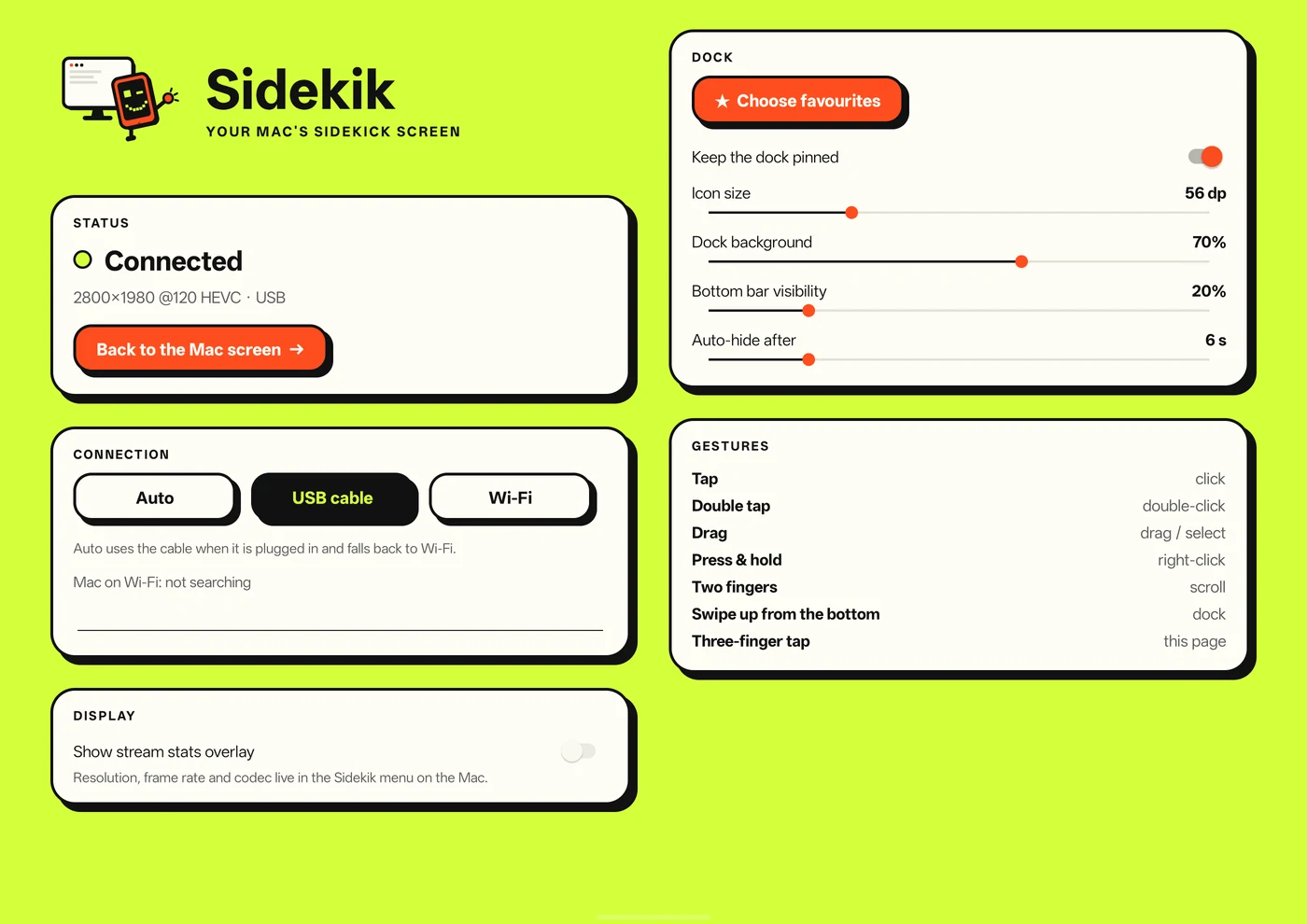
The home page appears whenever the tablet isn't streaming. While streaming, tap with three fingers (or use the Back gesture) to open it on top of your screen, and tap Back to the Mac screen to return.
Status: what Sidekik is doing, and the stream's resolution, frame rate and link once connected. Over the stream it also offers Back to the Mac screen and Refresh picture.
Connection: Auto / USB cable / Wi-Fi, the Mac found on Wi-Fi, and an optional address field.
Dock: choose favourites, pin the dock, icon size, dock and bottom-bar opacity, auto-hide delay.
Display: a stats overlay showing frames per second and decode time.
Gestures: a cheat sheet of everything below.
11Touch and stylus
Gesture
On the Mac
Tap
Click
Double tap
Double-click
Drag
Click and drag: move windows, select text, drag files
Press and hold
Right-click (context menu)
Two fingers
Scroll in any direction
Swipe up from the bottom edge
Open the quick-launch dock
Three-finger tap
Open the Sidekik home page
Stylus
Hover moves the pointer, touch draws or drags precisely, the side button right-clicks
Scrolling follows your fingers, like the content is glued to them. To reverse it, run this once in Terminal and reopen Sidekik:
Swipe up from near the bottom edge, or tap the thin bar there, to open a dock of up to six favourites. Tap an icon to open that app, or switch to it if it's running. Its window moves onto the tablet. A dot under an icon means the app is running.
Choose your favourites
Open the home page (three-finger tap) and tap Choose favourites.
Tick up to six Mac apps. Open Chrome tabs are listed too, and you can type any website.
Tap Save. The dock updates straight away.
Press and hold an icon
Gives you: Switch to / Open, Minimize (sends its windows to the Mac's Dock), Quit, Remove from dock, Hide dock and Sidekik home. Tapping a minimized app's icon brings its windows back onto the tablet.
Make it yours
On the home page: Keep the dock pinned to keep it on screen all the time, change the icon size, the dock background opacity, how visible the bottom bar is (0 hides it), and the auto-hide delay.
Website favouritesOn a Mac, a website favourite switches to the Chrome tab that already shows that site, or opens a new tab. The first time, macOS asks to let Sidekik control Chrome: allow it.
13Best settings
Goal
Connection
Resolution
Frame rate
Codec
Lowest latency
USB
Fast
120
H.264
Everyday (default)
Auto
Balanced
60
H.264
Sharpest text
USB
Native
60
HEVC
Wireless
Wi-Fi (5 GHz)
Balanced
60
H.264
Keep bitrate on Automatic: a fixed high bitrate can overload Wi-Fi. Turn on the stats overlay on the tablet to see the effect of each change live. What we measured on a OnePlus Pad Go 2 with a MacBook Pro: about 3 ms USB round trip, 9–15 ms to encode and 10–17 ms to decode a frame, depending on resolution.
14Windows (beta)
The Windows app works with the same tablet app and has the same features: USB or Wi-Fi, touch, the dock, the home page. It's new, so please tell us how it goes.
Option A · one command (recommended)
Open PowerShell (Start → type "PowerShell"), paste this and press Enter:
It installs Sidekik for your user in %LOCALAPPDATA%\Programs\Sidekik (no admin), adds a Start-menu shortcut, adds adb for USB if it's missing, offers to install the tablet app on a plugged-in tablet, and starts Sidekik. No SmartScreen prompt. Run it again to update.
Update with scoop update sidekik. For USB also run scoop install adb.
Option C · download the .zip
Download Sidekik for Windows, unzip it anywhere and run Sidekik.exe. If SmartScreen warns you, click More info → Run anyway. For USB, install platform-tools: winget install Google.PlatformTools.
After installing
Sidekik lives in the notification area (bottom-right). Allow it on private networks when Windows Firewall asks (needed for Wi-Fi).
For a true extended screen, install the free, signed Virtual Display Driver once. Windows has no built-in way for an app to add a monitor; Sidekik finds the driver and uses it automatically. Without it, Sidekik streams your second monitor if you have one, or mirrors your main screen.
Turn on USB debugging on the tablet as in chapter 5 and plug it in, or use Wi-Fi.
The tray menu has the same options as the Mac menu, plus Display (pick which monitor to stream) and Start with Windows. Differences from the Mac: H.264 only, and website favourites open in Chrome but can't jump to an already-open tab. Log: %LOCALAPPDATA%\Sidekik\Sidekik.log.
15Troubleshooting
"Waiting for your Mac over USB" with the cable plugged in
Something else is holding the tablet's USB connection:
Phone-sync apps such as O+ Connect switch the tablet into their own USB mode. Quit or uninstall them.
A second copy of adb started by another tool (an IDE, a phone manager) can grab the tablet. Close those tools, or run adb kill-server and reconnect.
Check the cable carries data, USB debugging is on, and you tapped Allow on the tablet.
Meanwhile, tap Auto on the tablet's home page and Sidekik uses Wi-Fi.
The tablet shows a black screen
Your Mac's displays are asleep or the Mac is locked. Wake and unlock it and the picture returns. Also check you granted Screen Recording (chapter 3) and reopened Sidekik afterwards.
The picture froze after the Mac slept or locked
Sidekik restarts the picture by itself when the Mac wakes or unlocks (version 0.1.1 and later). If it ever stays frozen, tap with three fingers on the tablet and choose Refresh picture, or pick Refresh picture in the Sidekik menu on the Mac. The dock and touch keep working meanwhile.
Touch moves the pointer but doesn't click, or does nothing
Sidekik needs Accessibility permission: System Settings → Privacy & Security → Accessibility → turn on Sidekik. If it's already on, turn it off and on again (macOS sometimes needs this after an update).
It feels laggy or stutters
Use a USB cable, or 5 GHz Wi-Fi close to the router.
Choose Balanced or Fast and 60 fps; keep bitrate on Automatic.
If you use wireless debugging for adb, Sidekik connects directly over Wi-Fi instead of through adb's tunnel; make sure the mode is Auto or Wi-Fi.
Turn on the stats overlay: "rtt" above ~20 ms points to the network.
The tablet can't find my Mac on Wi-Fi
Check both are on the same network (not a guest network) and Sidekik is running on the Mac. Type the Mac's address from the Sidekik menu (Connection → This Mac on Wi-Fi) into the tablet's home page. If macOS asks to let Sidekik find devices on your local network, allow it.
macOS: "Sidekik Not Opened" / "Apple could not verify Sidekik"
Sidekik isn't notarized by Apple yet. Click Done, then System Settings → Privacy & Security → Open Anyway. Or skip the prompt entirely by installing with curl -fsSL https://codeymon.com/download/sidekik/install.sh | bash (chapter 3).
USB stopped working after the Mac slept
Sometimes adb loses the tablet across sleep. Unplug and replug the cable, or run adb kill-server in Terminal; Sidekik reconnects within a few seconds. Wi-Fi keeps working in the meantime when the mode is Auto.
Android won't install the APK
Allow "install unknown apps" for the app you opened it with (browser or Files). If an older Sidekik is installed from a different source, uninstall it first.
Reporting a problem
Mac: Sidekik menu → Open log. Windows: %LOCALAPPDATA%\Sidekik\Sidekik.log. Send it with a short description to zooscribe@gmail.com.
16Update or uninstall
Update: run the same install command again (Mac or Windows), or brew upgrade --cask sidekik / scoop update sidekik. With the tablet plugged in, the command updates the tablet app too. Settings and favourites are kept.
Update on Mac: run the install command again, or brew upgrade --cask sidekik.
Uninstall on Mac: one of these, which also remove its settings:
Installed with Scoop: scoop uninstall sidekik. From the .zip: quit from the tray and delete the folder.
Tablet: long-press the Sidekik icon → Uninstall.
17Privacy
Sidekik has no account, no ads and no analytics. Your screen and your touches travel only between your computer and your tablet, over the cable or your own network. Nothing is sent to Codeymon or anyone else. The permissions it asks for are used only for what this guide describes.